UI Preset Editor
The UI Preset Editor is a configuration tool that allows you to customize the Survey Creator interface and package those changes as reusable UI presets. Presets are defined as JSON objects and can be applied when embedding Survey Creator into your application.
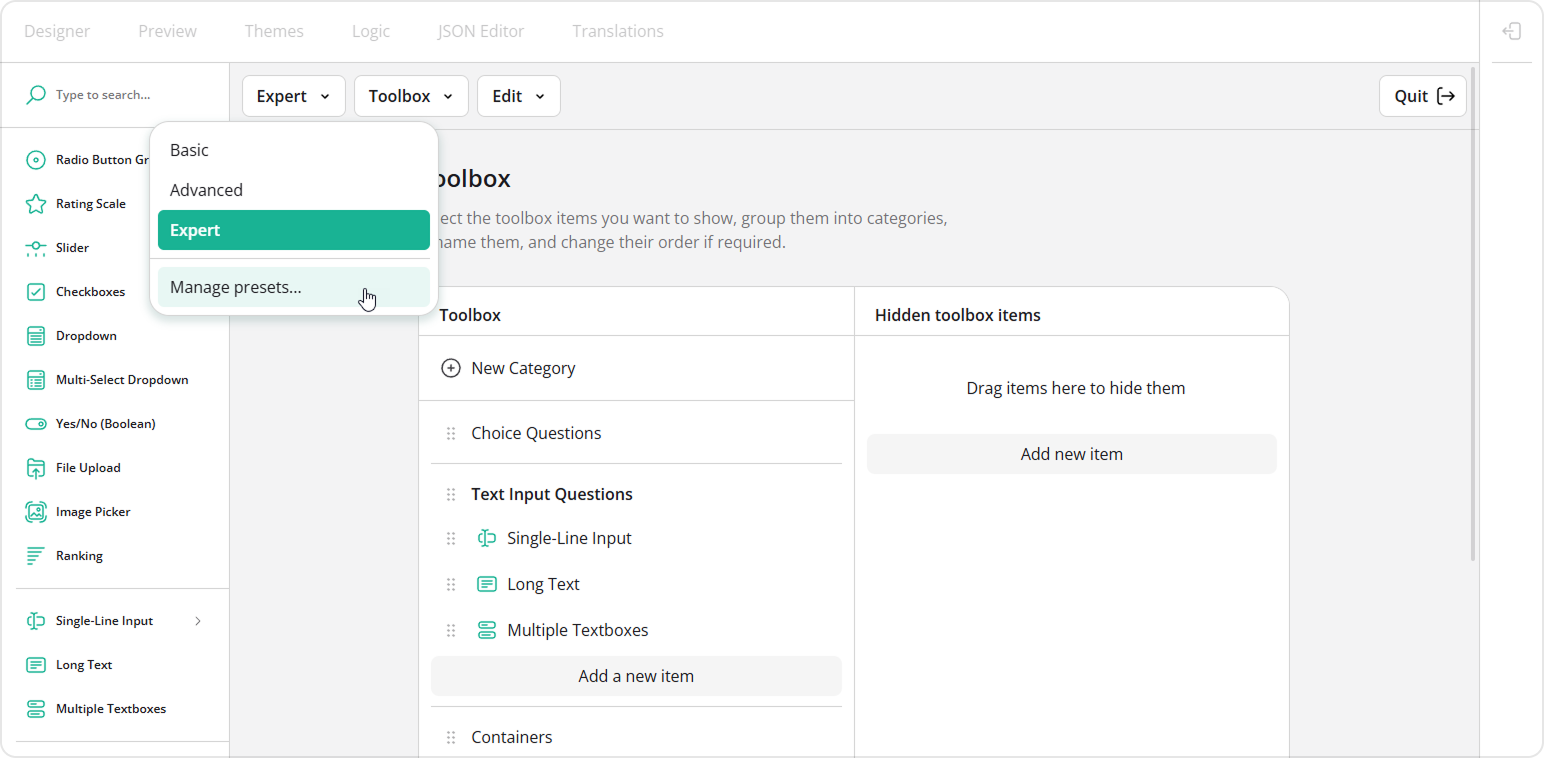
This help topic explains how to enable the UI Preset Editor, work with predefined presets, create and apply custom presets, and persist them in storage.
Predefined UI Presets
SurveyJS provides three predefined presets—Basic, Advanced, and Expert—which you can use as they are or as a starting point for your own configurations.
Basic
A streamlined preset for simple surveys and forms. It includes only the most commonly used question types and simplifies the Property Grid to reduce complexity.
Advanced
A balanced preset suitable for most use cases. Compared to Basic, it includes additional question types and features, a moderately detailed Property Grid, and extra tabs such as Logic, Themes, and Translations.
Expert
A full-featured preset that exposes all available configuration options. It includes the JSON Editor tab and provides complete control over the Property Grid and Survey Creator behavior at the cost of increased UI complexity.
Enable the UI Preset Editor
To use the UI Preset Editor, import its module or reference its script:
// Modular applications
import { UIPresetEditor } from "survey-creator-core/ui-preset-editor";
<!-- Classic script applications -->
<head>
  <script src="https://unpkg.com/survey-creator-core/ui-preset-editor.min.js"></script>
</head>
To attach the editor to Survey Creator, instantiate UIPresetEditor and pass a SurveyCreatorModel to its constructor:
// ...
// Omitted: `SurveyCreatorModel` initialization
// ...
new UIPresetEditor(creator);
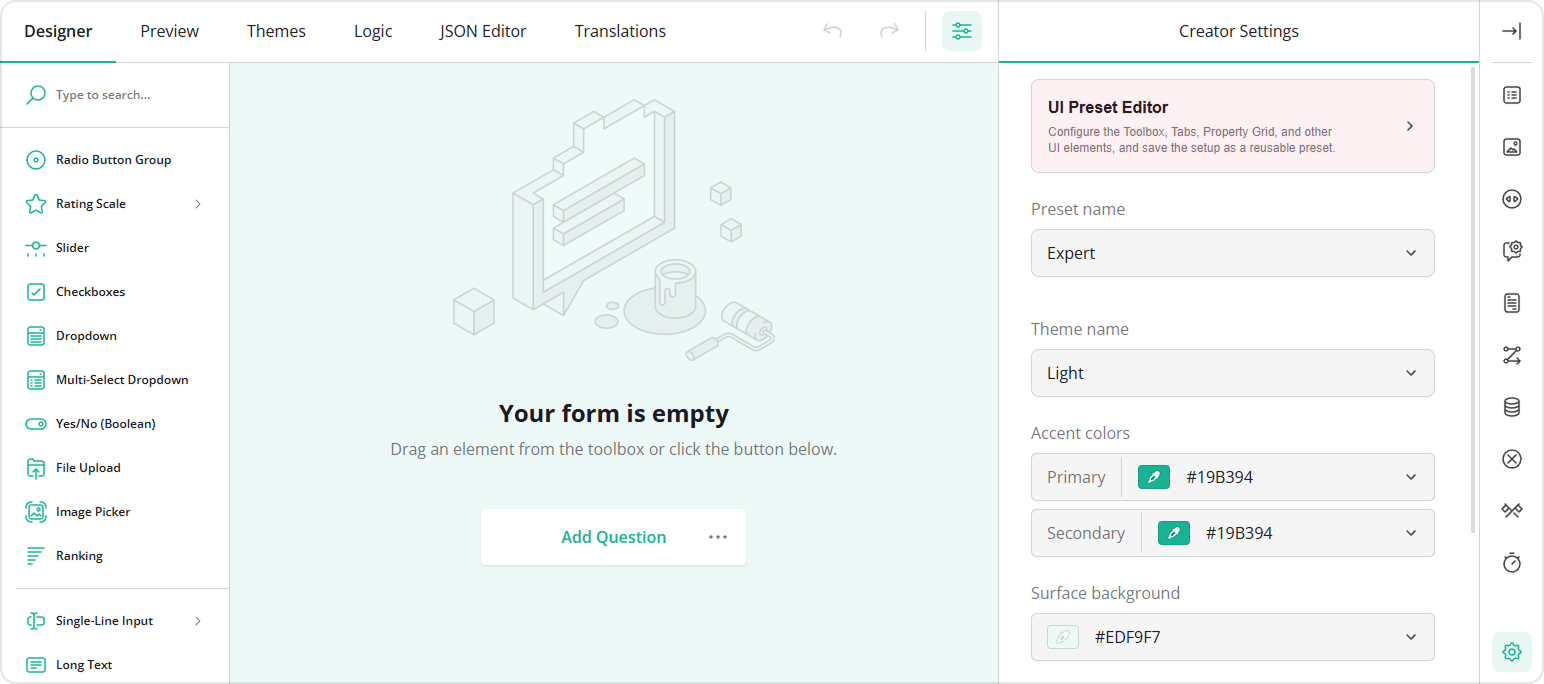
Once initialized, the UI Preset Editor becomes available from the Creator Settings panel.
Activate a SurveyJS License
The UI Preset Editor requires an active commercial developer license. This feature is available in the PRO and Enterprise license tiers. If you are using a Basic license, you need to upgrade to enable and use the UI Preset Editor.
If you use the UI Preset Editor without a valid license, an alert banner appears at the bottom of the Survey Creator interface:
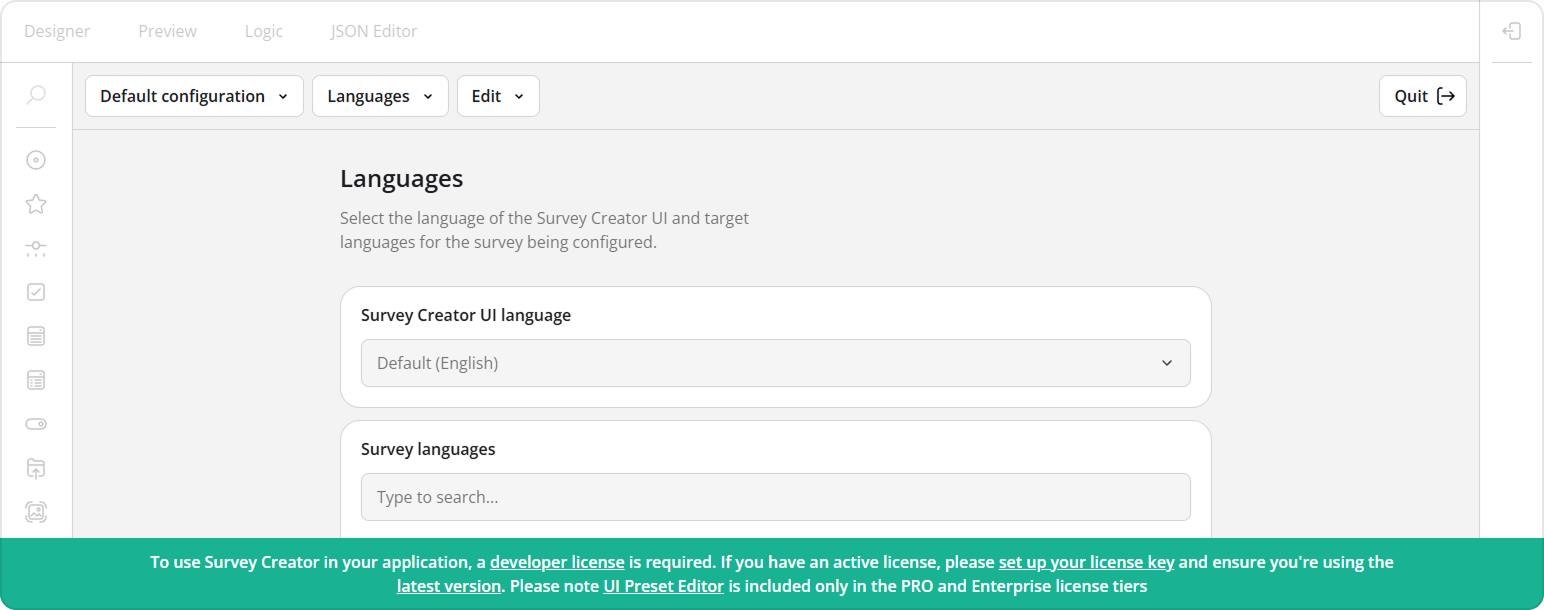
To remove the banner, activate your license:
- Log in to the SurveyJS website using your email address and password. If you've forgotten your password, request a reset and check your inbox for the reset link.
- Open the following page: How to Remove the Alert Banner. You can also access it by clicking Set up your license key in the alert banner itself.
- Follow the instructions on that page.
Once you've completed the setup correctly, the alert banner will no longer appear.
Register Predefined Presets
Before using predefined presets in the editor, register them:
// Modular applications
import SurveyCreatorUIPreset from "survey-creator-core/ui-presets";
import { registerUIPreset } from "survey-creator-core";

registerUIPreset(SurveyCreatorUIPreset);
<!-- Classic script applications -->
<script src="https://unpkg.com/survey-creator-core/ui-presets/index.min.js"></script>
<script>
  SurveyCreatorCore.registerUIPreset(SurveyCreatorUIPreset);
</script>
Once registered, these presets can serve as a starting point for customization.
Create a Custom Preset
A UI preset is composed of configuration across the following categories:
Languages
Define the Survey Creator UI language and supported survey languages.Tabs
Control which tabs are visible (Designer, Preview, Logic, Themes, Translations, JSON Editor) as well as their order, titles, icons, and default active tab.Toolbox
Show, hide, rename, reorder, and group toolbox items.Property Grid
Configure property visibility, grouping, order, and display names.Options
Adjust additional settings that affect overall behavior and appearance.
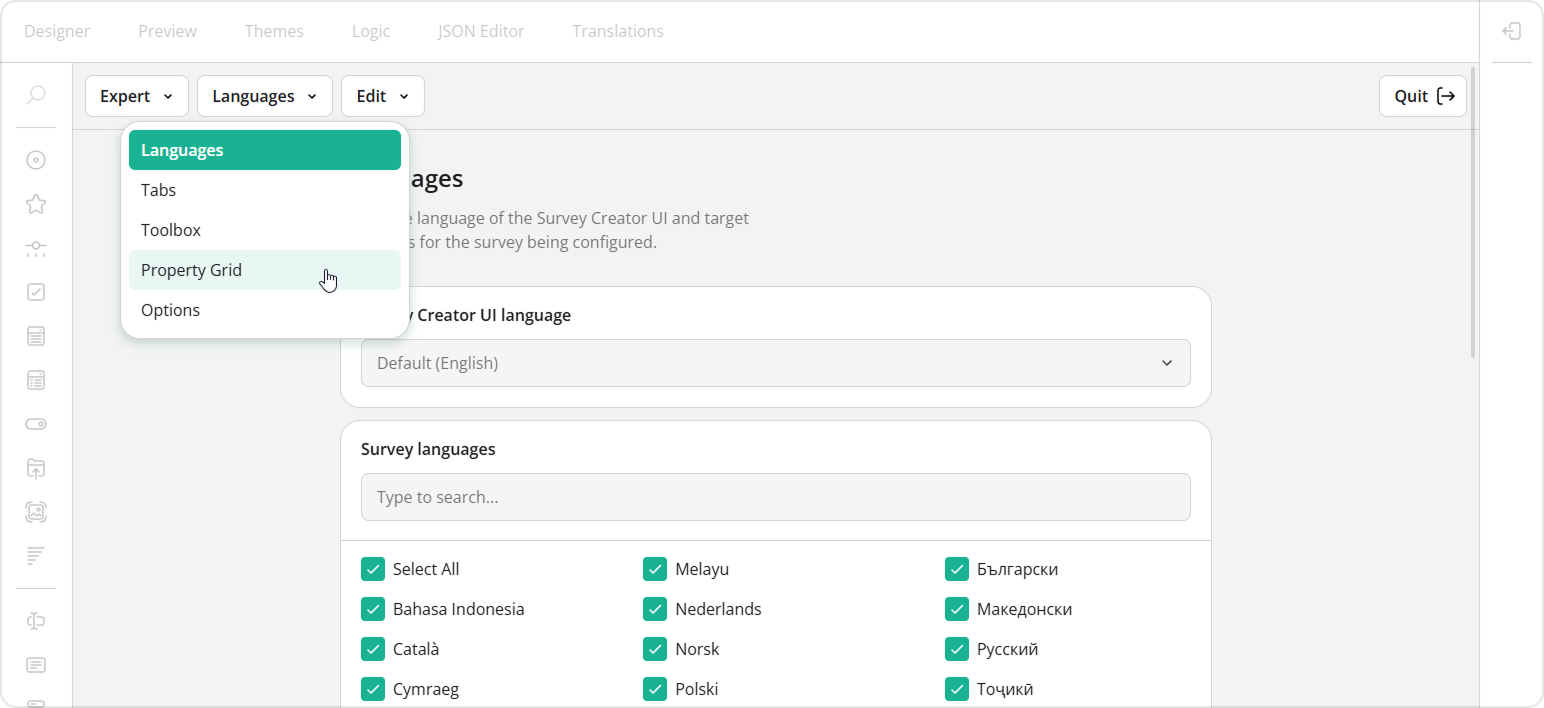
You can modify these settings visually in the editor and export the resulting configuration as a JSON object.
Apply a UI Preset
To apply a preset (predefined or custom), create a UIPreset instance with a JSON configuration and call applyTo():
// Modular applications
import { UIPreset } from "survey-creator-core";

// ...
// Omitted: `SurveyCreatorModel` initialization
// ...
const presetJson = { /* Preset configuration */ };

const preset = new UIPreset(presetJson);
preset.applyTo(creator);
<!-- Classic script applications -->
<script>
  // ...
  // Omitted: `SurveyCreatorModel` initialization
  // ...
  const presetJson = { /* Preset configuration */ };

  const preset = new SurveyCreatorCore.UIPreset(presetJson);
  preset.applyTo(creator);
</script>
The UI Preset Editor is not required to apply presets. It is only needed if you want to create or edit them visually.
Configure Themes and Translations
The Advanced and Expert presets enable the Themes and Translations tabs. These features require additional setup.
Themes Tab
To make predefined themes available for customization, register them:
// Modular applications
import SurveyTheme from "survey-core/themes";
import { registerSurveyTheme } from "survey-creator-core";

registerSurveyTheme(SurveyTheme);
<!-- Classic script applications -->
<script src="https://unpkg.com/survey-core/themes/index.min.js"></script>
<script>
  SurveyCreatorCore.registerSurveyTheme(SurveyTheme);
</script>
This allows users to create, import, and export custom themes as JSON. To enable saving custom themes to a database or another storage, refer to the following topic:
Translations Tab
To enable localization, load localization dictionaries:
// Modular applications
// Option 1: All languages
import "survey-core/survey.i18n";

// Option 2: Individual languages
import "survey-core/i18n/french";
import "survey-core/i18n/german";
import "survey-core/i18n/italian";
<!-- Classic script applications -->
<!-- Option 1: All languages -->
<script src="https://unpkg.com/survey-core/survey.i18n.min.js"></script>

<!-- Option 2: Individual languages -->
<script src="https://unpkg.com/survey-core/i18n/french.min.js"></script>
<script src="https://unpkg.com/survey-core/i18n/german.min.js"></script>
<script src="https://unpkg.com/survey-core/i18n/italian.min.js"></script>
Localization and Globalization
Save and Load Custom Presets
Preset configurations are plain JSON objects and can be persisted in storage (for example, a database or browser storage).
To enable saving, implement the savePresetFunc function, which accepts two arguments:
saveNo
An incremental change identifier. Use it to prevent out-of-order updates in asynchronous environments.callback
Invoke this function after saving. PasssaveNoas the first argument. Passtrueas the second argument if the operation succeeds; otherwise, passfalse.
Example: Save to localStorage
import { UIPresetEditor } from "survey-creator-core/ui-preset-editor";
// ...
// Omitted: `SurveyCreatorModel` initialization
// ...

const presetEditor = new UIPresetEditor(creator);
const localStorageKey = "survey-creator-presets";

// Load existing presets
const savedPresets = JSON.parse(localStorage.getItem(localStorageKey)) || [];
savedPresets.forEach(p => presetEditor.addPreset(p));

// Save handler
presetEditor.savePresetFunc = (saveNo, callback) => {
  const newPreset = presetEditor.preset;
  const presets = JSON.parse(localStorage.getItem(localStorageKey)) || [];

  const index = presets.findIndex(p => p.name === newPreset.name);
  if (index > -1) {
    presets[index] = newPreset;
  } else {
    presets.push(newPreset);
  }
  localStorage.setItem(localStorageKey, JSON.stringify(presets));
  callback(saveNo, true);
};
Example: Save to a Web Service
import { UIPresetEditor } from "survey-creator-core/ui-preset-editor";
// ...
// Omitted: `SurveyCreatorModel` initialization
// ...

const presetEditor = new UIPresetEditor(creator);

// Load existing presets
async function loadPresets(url) {
  try {
    const response = await fetch(url);
    const data = await response.json();
    return data;
  } catch {
    console.log("Could not load presets");
    return [];
  }
}

loadPresets("https://your-web-service.com/")
  .then(presets => {
    presets.forEach(p => presetEditor.addPreset(p));
  });

// Save handler
function savePresetJson(url, json, saveNo, callback) {
  fetch(url, {
    method: "POST",
    headers: {
      "Content-Type": "application/json;charset=UTF-8"
    },
    body: JSON.stringify(json)
  })
    .then(response => callback(saveNo, response.ok))
    .catch(() => callback(saveNo, false));
}

presetEditor.savePresetFunc = (saveNo, callback) => {
  savePresetJson(
    "https://your-web-service.com/",
    presetEditor.preset,
    saveNo,
    callback
  );
};
Send feedback to the SurveyJS team
Need help? Visit our support page