Customize Survey Elements in PDF
SurveyJS PDF Generator is designed to render survey elements into PDF optimally. At the same time, our tool includes APIs that allow you to adjust and customize element rendering to PDF according to your requirements. This help topic gives an overview of these APIs.
Styling and Layout
Customize Type-Wide Styles
To control element styles and indentation in an exported PDF, the PDF Generator exposes a style object. Its properties map to visual parameters of survey elements, such as font family and color, border width and radius, spacing between titles, descriptions, and content, etc.
The style object is hierarchical. At the top level, it contains properties that correspond to element types from the SurveyJS Form Library: survey, page, panel, question, dropdown, radiogroup, and others. Each property contains an object that defines styles applied to all elements of the corresponding type. The question style acts as a fallback: its parameters apply to all questions unless they are overridden by a more specific question type.
To customize these styles, define an object with the properties you want to override and pass it to the applyStyle(style) method of SurveyPDF. The following example increases the gap between the header (title and description) and content for all Radio Button Group questions and assigns different title colors to surveys, pages, and panels:
import { SurveyPDF } from "survey-pdf";

const surveyJson = { /** Survey JSON schema */ };
const pdfDocOptions = { /** PDF document settings */ };
const surveyPdf = new SurveyPDF(surveyJson, pdfDocOptions);
surveyPdf.data = { /** Survey data to populate the document with */ }

surveyPdf.applyStyle({
  radiogroup: {
    spacing: { choiceGap: 10 }
  },
  survey: {
    title: { fontColor: "#1F3A5F" }
  },
  page: {
    title: { fontColor: "#3F5F8A" }
  },
  panel: {
    title: { fontColor: "#6F86A6" }
  }
});

surveyPdf.save();
If your styles should depend on the currently applied UI theme, pass a callback function to applyStyle(). This function provides access to two helper functions—getSizeVariable(name) and getColorVariable(name)—which allow you to derive dimensions and colors from theme variables:
surveyPdf.applyStyle(({ getSizeVariable, getColorVariable }) => {
  return {
    radiogroup: {
      spacing: { choiceGap: getSizeVariable("--sjs2-base-unit-spacing") * 1.1 }
    },
    survey: {
      title: { fontColor: getColorVariable("--sjs2-palette-gray-800") }
    },
    page: {
      title: { fontColor: getColorVariable("--sjs2-palette-gray-600") }
    },
    panel: {
      title: { fontColor: getColorVariable("--sjs2-palette-gray-400") }
    }
  }
});
Customize Individual Element Styles
You can also customize the styles of individual pages, panels, questions, and choice items by handling the following events:
Each event provides access to the element being rendered and its style object. You can modify this object using dot notation to control how the element appears in the exported PDF.
In the following example, the choices of the "Select a color" question are rendered using the color they represent:
import { SurveyPDF } from "survey-pdf";

const surveyJson = {
  "pages": [
    {
      "name": "page1",
      "elements": [
        {
          "type": "radiogroup",
          "name": "colors",
          "title": "Select a color",
          "choices": [
            { "value": "red", "text": "Red" },
            { "value": "green", "text": "Green" },
            { "value": "blue", "text": "Blue" }
          ]
        }
      ]
    }
  ]
};

const pdfDocOptions = { /** PDF document settings */ };
const surveyPdf = new SurveyPDF(surveyJson, pdfDocOptions);
surveyPdf.data = { /** Survey data to populate the document with */ }

surveyPdf.onGetItemStyle.add((_, options) => {
  if (options.question.name === "colors") {
    options.style.choiceText.fontColor = options.item.value;
    options.style.input.fontColor = options.item.value;
    options.style.input.borderColor = options.item.value;
  }
});

surveyPdf.save();
These events also expose the getSizeVariable(name) and getColorVariable(name) helper functions, which you can use to base styles on the active UI theme:
surveyPdf.onGetItemStyle.add((_, options) => {
  if (options.question.name === "colors") {
    const color = options.getColorVariable(
      "--sjs2-palette-" + options.item.value + "-600"
    );
    options.style.choiceText.fontColor = color;
    options.style.input.fontColor = color;
    options.style.input.borderColor = color;
  }
});
HTML Rendering
Questions of the HTML type enable you to add any custom elements to your survey. However, complex HTML markup is difficult to render into PDF primitives without losing interactivity. If the markup mostly consists of textual content, it is rendered into PDF as selectable text. Complex HTML markup is rendered as images. If you want to override this behavior, set the htmlRenderAs property to one of the following values:
"standard"
Renders HTML questions as selectable text."image"
Renders HTML questions as images."auto"(default)
Selects between the"standard"and"image"modes automatically based on the HTML content.
const pdfDocOptions = {
  htmlRenderAs: "image" // or "standard" | "auto"
};

const surveyPdf = new SurveyPDF.SurveyPDF(surveyJson, pdfDocOptions);

// In modular applications:
import { SurveyPDF } from "survey-pdf";
const surveyPdf = new SurveyPDF(surveyJson, pdfDocOptions);
You can override this property for individual HTML questions. Set the question's renderAs property to "standard" or "image" in the survey JSON schema:
const surveyJson = {
  "elements": [{
    "type": "html",
    // ...
    "renderAs": "image" // or "standard"
  }]
};
Matrix Rendering
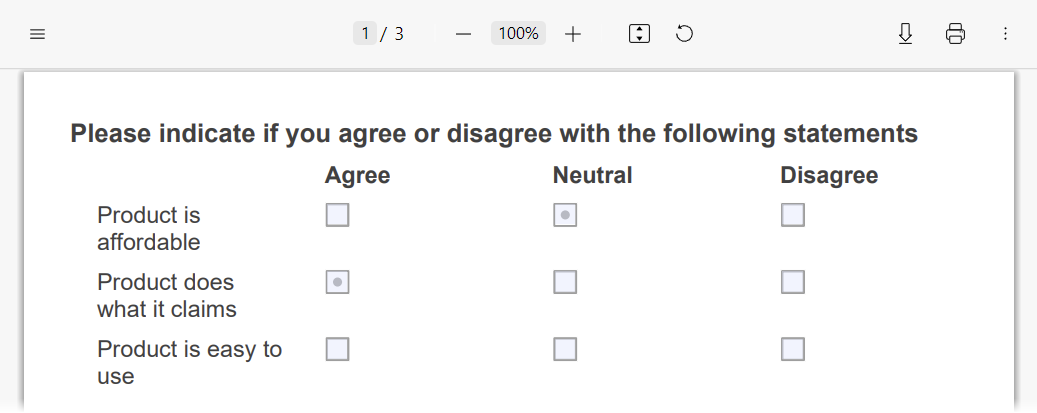
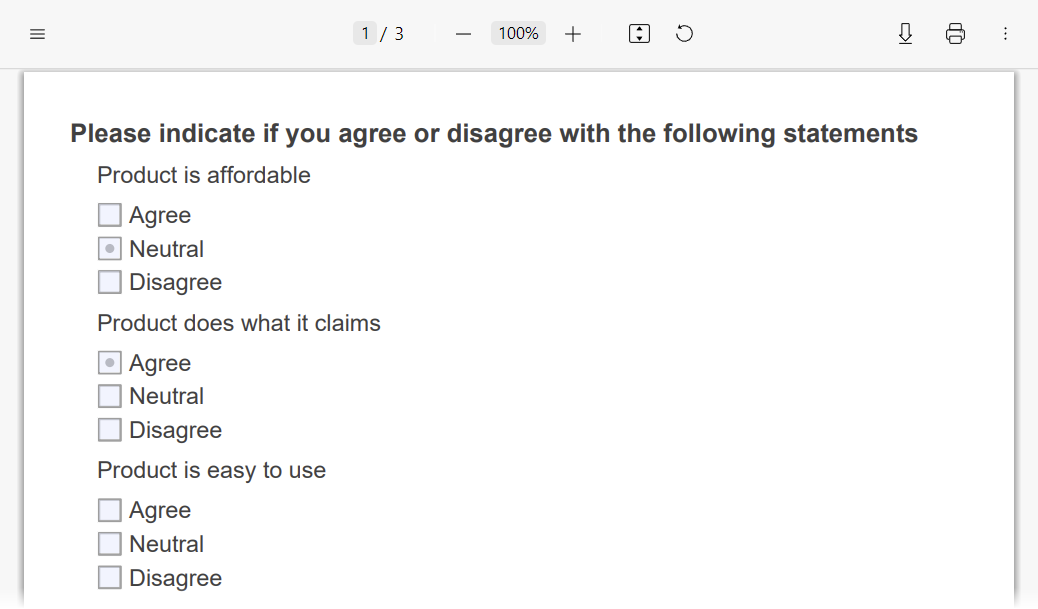
Single-Select Matrix, Multi-Select Matrix, and Dynamic Matrix questions can be rendered into PDF as tables or lists. Tables are used if matrix content fits into the available page width. Otherwise, matrix content is rendered as a list.
Matrix rendered as a table
Matrix rendered as a list
If you want to render all matrices as lists, regardless of whether they fit into the page as tables or not, set the matrixRenderAs property to "list":
const pdfDocOptions = {
  matrixRenderAs: "list"
};

const surveyPdf = new SurveyPDF.SurveyPDF(surveyJson, pdfDocOptions);

// In modular applications:
import { SurveyPDF } from "survey-pdf";
const surveyPdf = new SurveyPDF(surveyJson, pdfDocOptions);
You can override this property for individual matrix questions. Set the question's renderAs property to "list" in the survey JSON schema:
const surveyJson = {
  "elements": [{
    "type": "matrix",
    // ...
    "renderAs": "list"
  }]
};
Image Rendering
Image questions have an imageFit property that specifies how images should fit into their containers. If exported images should apply this property, enable the applyImageFit option. Please note that with this option, the quality of images may be lower because they pass through several conversions.
const options = {
  applyImageFit: true
};

const surveyPdf = new SurveyPDF.SurveyPDF(surveyJson, pdfDocOptions);

// In modular applications:
import { SurveyPDF } from "survey-pdf";
const surveyPdf = new SurveyPDF(surveyJson, pdfDocOptions);
If applyImageFit is disabled, exported images fill the entire container and do not preserve their aspect ratio, but their quality remains the same because they are exported as is.
Read-Only Question Rendering
Read-only questions can be rendered as plain text surrounded by custom primitives or as interactive AcroForms switched to their native read-only state. To specify the desired render mode, set the readonlyRenderAs property to "text" or "acroform":
const pdfDocOptions = {
  readonlyRenderAs: "text" // or "acroform" | "auto"
};

const surveyPdf = new SurveyPDF.SurveyPDF(surveyJson, pdfDocOptions);

// In modular applications:
import { SurveyPDF } from "survey-pdf";
const surveyPdf = new SurveyPDF(surveyJson, pdfDocOptions);
The default value of the readonlyRenderAs property is "auto". In this mode, SurveyJS PDF Generator renders most elements as plain text but uses AcroForms for File Upload questions and links.
You can override the readonlyRenderAs property value for individual questions:
import { Model } from "survey-core";
import { SurveyPDF } from "survey-pdf";

const surveyJson = { ... };
const pdfDocOptions = { ... };

const survey = new Model(surveyJson);
const surveyPdf = new SurveyPDF(surveyJson, pdfDocOptions);

surveyPdf.data = survey.data;
surveyPdf.getAllQuestions().forEach(question => {
  if (question.getType() === "file") {
    question.readOnly = true;
    question.readonlyRenderAs = "text";
  }
});
surveyPdf.save(filename);
Custom Rendering
Any PDF document consists of bricks—simple elements with specified content, size, and location. A brick API is described in the PdfBrick API reference. When you work with bricks, you need to understand the structure of the bricks that compose the currently rendered questions and access the bricks that contain the element you want to customize, such as the question title, description, or an individual choice. The easiest way to understand the brick structure is to insert a debugger into an onRenderQuestion event handler and investigate the options.bricks array using a browser's developer tools:
const surveyPdf = new SurveyPDF.SurveyPDF(surveyJson, pdfDocOptions);
surveyPdf.onRenderQuestion.add((_, options) => {
  debugger;
});

// In modular applications:
import { SurveyPDF } from "survey-pdf";
const surveyPdf = new SurveyPDF(surveyJson, pdfDocOptions);
surveyPdf.onRenderQuestion.add((_, options) => {
  debugger;
});
The following code gives an example of brick customization. In this code, question titles are colored differently depending on whether the question answer is correct:
import { ItemValue } from "survey-core";

surveyPdf.onRenderQuestion.add((_, options) => {
  const plainBricks = options.bricks[0].unfold();
  // Color the title green for correct answers or red for incorrect answers
  const color = options.question.isAnswerCorrect() ? "#00ff00" : "#ff0000";
  plainBricks[0].textColor = color; // A brick that renders a question number
  plainBricks[1].textColor = color; // A brick that renders a question title

  // Find a correct answer and access its text brick
  const correctAnswer = ItemValue.getItemByValue(options.question.choices, options.question.correctAnswer);
  const correctAnswerIndex = options.question.choices.indexOf(correctAnswer);
  const correctAnswerRootBrick = options.bricks[correctAnswerIndex];
  const correctAnswerTextBrick = (correctAnswerIndex === 0)
    ? correctAnswerRootBrick.unfold()[4]
    : correctAnswerRootBrick.unfold()[1];
  // Color the correct answer green
  correctAnswerTextBrick.textColor = "#00ff00";
});
Send feedback to the SurveyJS team
Need help? Visit our support page