Add SurveyJS Dashboard to an Angular Application
This tutorial explains how to integrate SurveyJS Dashboard into an Angular application and visualize survey results. Follow the steps below to set up and render a dashboard:
- Install the
survey-analyticsnpm Package - Configure Styles
- Load Survey Results
- Configure the Dashboard
- Render the Dashboard
- Activate a SurveyJS License
The final result is an interactive dashboard similar to the one shown below:
View Live Example
If you need a preconfigured starter project with all SurveyJS components, refer to the following repository: SurveyJS + Angular CLI Quickstart Template.
Install the survey-analytics npm Package
SurveyJS Dashboard is distributed as the survey-analytics npm package. Install it using the following command:
npm install survey-analytics
SurveyJS Dashboard uses the Chart.js library for data visualization. This dependency is installed automatically.
Configure Styles
Add Themes
Open the angular.json file and add the SurveyJS Dashboard stylesheet to the styles array:
// angular.json
{
  "$schema": "./node_modules/@angular/cli/lib/config/schema.json",
  // ...
  "projects": {
    "project-name": {
      "projectType": "application",
      // ...
      "architect": {
        "build": {
          // ...
          "options": {
            // ...
            "styles": [
              "src/styles.css",
              "node_modules/survey-analytics/survey.analytics.css"
            ],
            // ...
          }
        }
      }
    }
  }
}
Add Fonts
Starting with SurveyJS v3.0.4, fonts are no longer included in SurveyJS packages. Load Open Sans separately to preserve the default appearance, unless your application already does so. If you use a custom font, load it instead. Otherwise, the browser uses a fallback font, which may affect spacing and layout.
To add Open Sans using Fontsource, run the following command:
npm install @fontsource/open-sans
The configuration below includes the font style sheets for weights 400, 600, and 700. Add them once to your application's global styles.
/* styles.css */
@import '@fontsource/open-sans/400.css';
@import '@fontsource/open-sans/600.css';
@import '@fontsource/open-sans/700.css';
Load Survey Results
When a respondent completes a survey, a JSON object with their answers is passed to the SurveyModel's onComplete event handler. Send this object to your server and store it with a specific survey ID (see Handle Survey Completion). A collection of these JSON objects forms the data source for the Dashboard. You can aggregate this data either on the server or on the client.
Server-Side Data Processing
By default, the Dashboard loads all stored responses and processes them in the browser, which can degrade performance as the dataset grows. To optimize load times, move aggregation logic to the server and return only precomputed statistics to the client. See the following demo for a reference implementation:
SurveyJS Dashboard: Server-Side Data Processing Demo Example
Client-Side Data Processing
With client-side processing, the Dashboard loads the full dataset at startup and performs aggregation in the browser. This approach requires more bandwidth and client-side resources, but is sufficient and often simpler for smaller datasets.
To retrieve results, send a request to your backend and return an array of JSON objects:
import { AfterViewInit, Component } from '@angular/core';

const SURVEY_ID = 1;

@Component({
  // ...
})
export class AppComponent implements AfterViewInit {
  // ...
  async ngAfterViewInit(): Promise<void> {
    try {
      const surveyResults = await loadSurveyResults(
        `https://your-web-service.com/${SURVEY_ID}`
      );

      // ...
      // Configure and render the Dashboard here
      // Refer to the section below
      // ...
    } catch (error) {
      console.error('Failed to load survey results:', error);
    }
  }
}

function loadSurveyResults(url: string): Promise<any[]> {
  return fetch(url, {
    method: 'GET',
    headers: {
      'Content-Type': 'application/x-www-form-urlencoded'
    }
  })
    .then((response) => {
      if (!response.ok) {
        throw new Error(`Request failed with status ${response.status}`);
      }
      return response.json();
    })
    .catch((error) => {
      throw new Error(error.message || 'Network error');
    });
}
For demonstration purposes, this tutorial uses predefined survey results:
const surveyJson = {
  elements: [{
    name: "satisfaction-score",
    title: "How would you describe your experience with our product?",
    type: "radiogroup",
    choices: [
      { value: 5, text: "Fully satisfying" },
      { value: 4, text: "Generally satisfying" },
      { value: 3, text: "Neutral" },
      { value: 2, text: "Rather unsatisfying" },
      { value: 1, text: "Not satisfying at all" }
    ],
    isRequired: true
  }, {
    name: "nps-score",
    title: "On a scale of zero to ten, how likely are you to recommend our product to a friend or colleague?",
    type: "rating",
    rateMin: 0,
    rateMax: 10,
  }],
  completedHtml: "Thank you for your feedback!",
};

const surveyResults = [
  { "satisfaction-score": 5, "nps-score": 10 },
  { "satisfaction-score": 5, "nps-score": 9 },
  { "satisfaction-score": 3, "nps-score": 6 },
  { "satisfaction-score": 3, "nps-score": 6 },
  { "satisfaction-score": 2, "nps-score": 3 }
];
Configure the Dashboard
Pass an IDashboardOptions object to the Dashboard constructor to configure the dashboard.
Specify the data array to provide survey results. You can then either auto-generate dashboard items based on survey questions or define them manually.
Auto-Generate Dashboard Items
To generate dashboard items automatically, assign survey questions to the questions property. Use the SurveyModel's getAllQuestions() method to retrieve them.
Each generated item inherits the question's name and title. The Dashboard also automatically selects a suitable visualization type and populates the list of available alternative types (availableTypes) that users can switch between.
Use the items array to control which items appear and override their configuration. This array can include question names and full configuration objects. When you specify a configuration object, it is merged with the auto-generated settings.
The following example uses the items array to set the default NPS visualization type for the nps-score question:
import { AfterViewInit, Component } from '@angular/core';
import { Model } from 'survey-core';
import { Dashboard } from 'survey-analytics';

const surveyJson = { /* ... */ };
const surveyResults = [ /* ... */ ];

@Component({
  // ...
})
export class AppComponent implements AfterViewInit {
  ngAfterViewInit(): void {
    const survey = new Model(surveyJson);
    const dashboard = new Dashboard({
      questions: survey.getAllQuestions(),
      data: surveyResults,
      items: [
        "satisfaction-score",
        {
          name: "nps-score",
          type: "nps"
        }
      ]
    });
  }
}
View Full Code
import { AfterViewInit, Component } from '@angular/core';
import { Model } from 'survey-core';
import { Dashboard } from 'survey-analytics';

const surveyJson = {
  elements: [{
    name: "satisfaction-score",
    title: "How would you describe your experience with our product?",
    type: "radiogroup",
    choices: [
      { value: 5, text: "Fully satisfying" },
      { value: 4, text: "Generally satisfying" },
      { value: 3, text: "Neutral" },
      { value: 2, text: "Rather unsatisfying" },
      { value: 1, text: "Not satisfying at all" }
    ],
    isRequired: true
  }, {
    name: "nps-score",
    title: "On a scale of zero to ten, how likely are you to recommend our product to a friend or colleague?",
    type: "rating",
    rateMin: 0,
    rateMax: 10,
  }],
  completedHtml: "Thank you for your feedback!",
};

const surveyResults = [
  { "satisfaction-score": 5, "nps-score": 10 },
  { "satisfaction-score": 5, "nps-score": 9 },
  { "satisfaction-score": 3, "nps-score": 6 },
  { "satisfaction-score": 3, "nps-score": 6 },
  { "satisfaction-score": 2, "nps-score": 3 }
];

@Component({
  selector: 'app-root',
  templateUrl: './app.component.html',
  styleUrls: ['./app.component.css']
})
export class AppComponent implements AfterViewInit {
  title = 'SurveyJS Dashboard for Angular';

  ngAfterViewInit(): void {
    const survey = new Model(surveyJson);
    const dashboard = new Dashboard({
      questions: survey.getAllQuestions(),
      data: surveyResults,
      items: [
        "satisfaction-score",
        {
          name: "nps-score",
          type: "nps"
        }
      ]
    });
  }
}
Configure Dashboard Items Manually
If your dashboard is not based on a survey schema, configure all items explicitly. Populate the items array with IDashboardItemOptions objects. Use the name property to bind each item to a data field.
import { AfterViewInit, Component } from '@angular/core';
import { Dashboard } from 'survey-analytics';

const surveyResults = [ /* ... */ ];

@Component({
  // ...
})
export class AppComponent implements AfterViewInit {
  ngAfterViewInit(): void {
    const dashboard = new Dashboard({
      data: surveyResults,
      items: [
        {
          name: "satisfaction-score",
          type: "bar",
          title: "CSAT",
          availableTypes: [ "bar", "vbar", "pie", "gauge" ]
        },
        {
          name: "nps-score",
          type: "nps",
          title: "NPS Score",
          allowChangeType: false
        }
      ]
    });
  }
}
View Full Code
import { AfterViewInit, Component } from '@angular/core';
import { Dashboard } from 'survey-analytics';

const surveyResults = [
  { "satisfaction-score": 5, "nps-score": 10 },
  { "satisfaction-score": 5, "nps-score": 9 },
  { "satisfaction-score": 3, "nps-score": 6 },
  { "satisfaction-score": 3, "nps-score": 6 },
  { "satisfaction-score": 2, "nps-score": 3 }
];

@Component({
  selector: 'app-root',
  templateUrl: './app.component.html',
  styleUrls: ['./app.component.css']
})
export class AppComponent implements AfterViewInit {
  title = 'SurveyJS Dashboard for Angular';

  ngAfterViewInit(): void {
    const survey = new Model(surveyJson);
    const dashboard = new Dashboard({
      data: surveyResults,
      items: [
        {
          name: "satisfaction-score",
          type: "bar",
          title: "CSAT",
          availableTypes: [ "bar", "vbar", "pie", "gauge" ]
        },
        {
          name: "nps-score",
          type: "nps",
          title: "NPS Score",
          allowChangeType: false
        }
      ]
    });
  }
}
Render the Dashboard
Add a container element to the component template:
<div id="dashboard"></div>
Call the render(containerId) method on the Dashboard instance you configured to mount the dashboard:
// ...
@Component({
  // ...
})
export class AppComponent implements AfterViewInit {
  ngAfterViewInit(): void {
    // ...
    dashboard.render("dashboard");
  }
}
Run the application with ng serve and open http://localhost:4200/ in your browser.
View Full Code
<div id="dashboard"></div>
import { AfterViewInit, Component } from '@angular/core';
import { Model } from 'survey-core';
import { Dashboard } from 'survey-analytics';

const surveyJson = {
  elements: [{
    name: "satisfaction-score",
    title: "How would you describe your experience with our product?",
    type: "radiogroup",
    choices: [
      { value: 5, text: "Fully satisfying" },
      { value: 4, text: "Generally satisfying" },
      { value: 3, text: "Neutral" },
      { value: 2, text: "Rather unsatisfying" },
      { value: 1, text: "Not satisfying at all" }
    ],
    isRequired: true
  }, {
    name: "nps-score",
    title: "On a scale of zero to ten, how likely are you to recommend our product to a friend or colleague?",
    type: "rating",
    rateMin: 0,
    rateMax: 10,
  }],
  completedHtml: "Thank you for your feedback!",
};

const surveyResults = [
  { "satisfaction-score": 5, "nps-score": 10 },
  { "satisfaction-score": 5, "nps-score": 9 },
  { "satisfaction-score": 3, "nps-score": 6 },
  { "satisfaction-score": 3, "nps-score": 6 },
  { "satisfaction-score": 2, "nps-score": 3 }
];

@Component({
  selector: 'app-root',
  templateUrl: './app.component.html',
  styleUrls: ['./app.component.css']
})
export class AppComponent implements AfterViewInit {
  title = 'SurveyJS Dashboard for Angular';

  ngAfterViewInit(): void {
    const survey = new Model(surveyJson);
    const dashboard = new Dashboard({
      questions: survey.getAllQuestions(),
      data: surveyResults,
      items: [
        "satisfaction-score",
        {
          name: "nps-score",
          type: "nps"
        }
      ]
    });
    dashboard.render("dashboard");
  }
}
Activate a SurveyJS License
SurveyJS Dashboard is not available for free commercial use. To integrate it into your application, you must purchase a commercial license for the software developer(s) who will be working with the Dashboard APIs and implementing the integration. If you use SurveyJS Dashboard without a license, an alert banner will appear at the top of the interface:
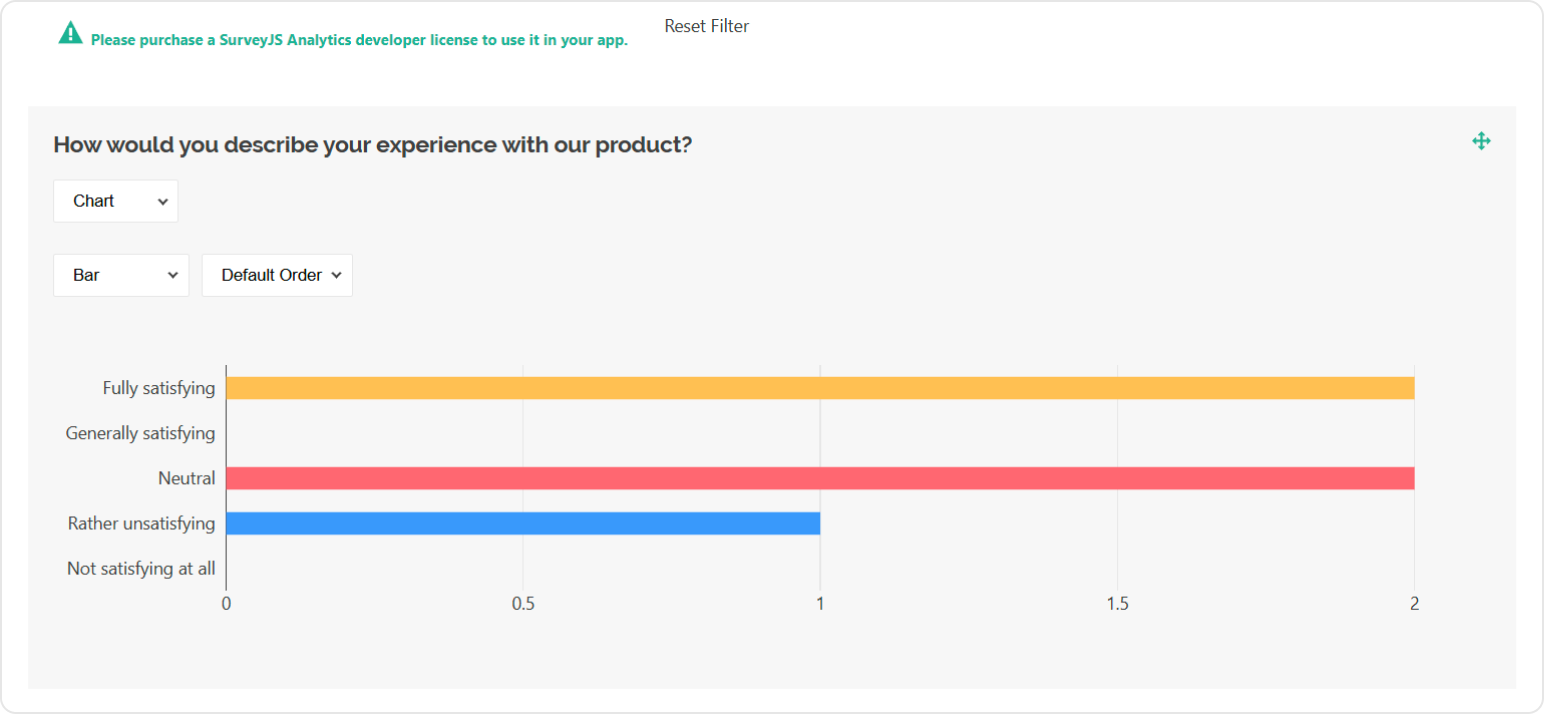
After purchasing a license, follow the steps below to activate it and remove the alert banner:
- Log in to the SurveyJS website using your email address and password. If you've forgotten your password, request a reset and check your inbox for the reset link.
- Open the following page: How to Remove the Alert Banner. You can also access it by clicking Set up your license key in the alert banner itself.
- Follow the instructions on that page.
Once you've completed the setup correctly, the alert banner will no longer appear.
See Also
Send feedback to the SurveyJS team
Need help? Visit our support page